WordPress and CRM: How to Turn Your Website Into a Lead-Generating Machine
Quick Answer
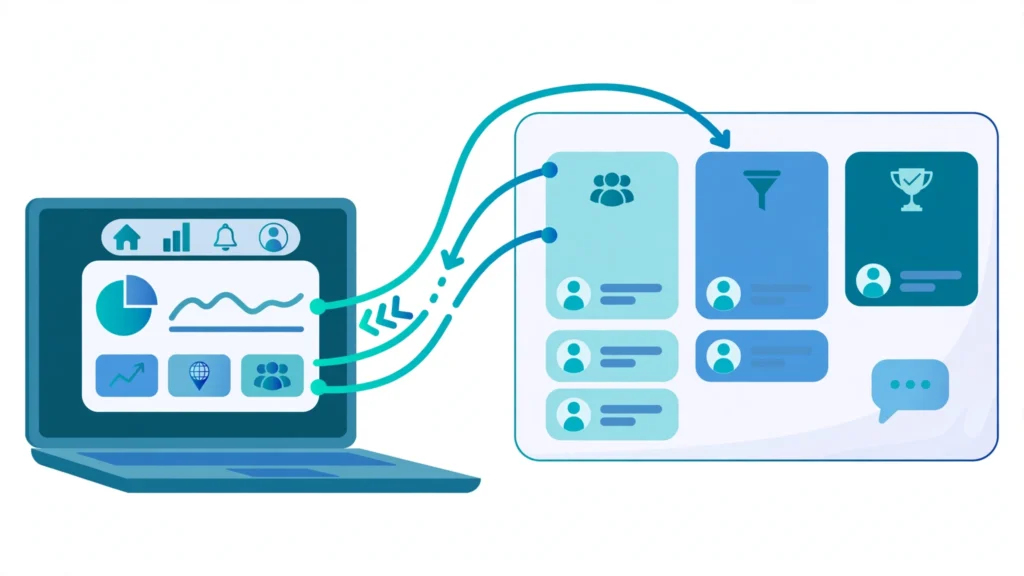
WordPress CRM integration connects your website to a customer relationship management system so every form submission, chat message, and booking becomes a contact record automatically. Leads stop sitting in your inbox and start flowing into your CRM with their source and interests attached, while follow-up emails and texts begin on their own.
Key Takeaways
- WordPress CRM integration sends every website lead into your CRM automatically, so no inquiry is lost in an inbox or spreadsheet.
- The three connection methods are a native CRM plugin, a form builder add-on, and an automation tool like Zapier or Make.com.
- HubSpot offers a free WordPress plugin used on more than 280,000 WordPress websites; GoHighLevel, Salesforce, Zoho CRM, and ActiveCampaign connect through forms, webhooks, or automation tools.
- Field mapping, lead source tracking, and consent decide whether the integration works or creates messy data.
- After connecting, automate the confirmation message, lead assignment, and follow-up sequence first, then add lead scoring later.
Most WordPress websites have the same problem: they get visitors, but the visitors leave without a trace. A potential client starts a contact form, gets distracted, and never comes back. WordPress CRM integration fixes this: every form fill, chat, and booking becomes a contact record. This guide explains what it is, which CRM works best, how to set it up, and which mistakes to avoid.
What Is WordPress CRM Integration?
WordPress CRM integration is the connection between your WordPress website and a CRM system that automatically sends visitor information into the CRM. When someone fills out a form, starts a chat, books a call, or makes a purchase, their details become a contact record without anyone copying and pasting data by hand.
Without this connection, leads arrive by email, and someone has to read each message, type the details into the CRM, and remember to follow up. That manual step is where leads die: emails get missed, details get typed wrong, and follow-up happens days late or not at all.
With the connection in place, a visitor fills out the quote form on your homepage and a contact appears in your CRM within seconds, tagged as a website lead, with a welcome email sent and your team notified. Nothing depends on someone remembering to check the inbox. There are three ways to build this connection: a native CRM plugin such as the free HubSpot WordPress plugin; a form builder add-on like WPForms, which sends your existing forms to HubSpot or Salesforce; or an automation tool like Zapier or Make.com, or a direct webhook, which passes data between WordPress and almost any CRM.
Why Should Your WordPress Website Connect to a CRM?
Your WordPress website should connect to a CRM because a website without one captures attention but keeps none of it. The integration turns anonymous traffic into named, trackable contacts and makes follow-up automatic, so every interested visitor gets a fast response even when your team is offline.
The first reason is speed. A lead who fills out a form at 11 p.m. expects a fast response; if it waits in your inbox until Monday morning, they have often already contacted a competitor. An integrated CRM sends an instant confirmation and starts follow-up within minutes. See our guide on lead follow-up automation in GoHighLevel for how that sequence works.
The second reason is memory. A CRM remembers every interaction: which pages a contact visited, which emails they opened, and what your team said last time. When you call back, you already know what they want.
The third reason is measurement. Once website leads live in your CRM, you can see which pages and campaigns actually produce customers, not just traffic. It also removes busywork: no one spends their day copying names and emails from an inbox into a spreadsheet.
Which CRM Works Best With WordPress?
The best CRM for WordPress depends on your business. HubSpot is the easiest starting point: its free plugin adds CRM, forms, live chat, and email marketing in one install, and it is used on more than 280,000 WordPress websites. GoHighLevel suits agencies and service businesses that want forms, funnels, calendars, and follow-up in one platform; Salesforce, Zoho CRM, and ActiveCampaign connect through form builders or automation tools.
Here is how the main options compare:
| CRM | How It Connects to WordPress | Best For | Cost Note |
|---|---|---|---|
| HubSpot | Free official plugin with forms, chat, and CRM sync built in | Small businesses starting with a free CRM | Plugin is free; paid plans add advanced automation |
| GoHighLevel | Embed forms and calendars, or send data by webhook, Zapier, or Make.com | Agencies and service businesses wanting CRM, funnels, and follow-up in one place | Paid platform; replaces several separate tools |
| Salesforce | WPForms Salesforce add-on, or Zapier and Make.com | Mid-size and larger companies running Salesforce | Requires the WPForms Elite license for the direct add-on |
| Zoho CRM | WPForms add-on, Zapier, or webhooks | Small businesses wanting an affordable, full-featured CRM | Free tier available; paid plans start low |
| ActiveCampaign | Official WordPress plugin and form embeds | Businesses focused on email automation and lead nurturing | Paid plans based on contact count |
WPForms reviewed the leading options and picked WPForms with HubSpot or Salesforce as its top choice for small businesses, because the form builder sends leads to the CRM without manual copying. If you are still deciding, our guide on how to choose the right CRM for your business walks through the decision. Pick the CRM your team will actually use every day, then connect it to WordPress.
How Do You Connect WordPress to a CRM?
Connecting WordPress to a CRM takes seven steps: choose your CRM, install the connection, map your fields, add tracking and consent, set tags, build the follow-up workflow, and test. Most businesses finish in a day.
- Choose your CRM and connection method. HubSpot users install its free plugin, GoHighLevel users embed forms or use a webhook, and Salesforce or Zoho CRM users install WPForms with its CRM add-on or connect through Zapier or Make.com. Use one method per form.
- Install the plugin or automation. In WordPress, go to Plugins, then Add New, install the plugin, and connect it with the API key or login it asks for. Confirm the connection shows as active.
- Map every form field to a CRM field. For each form, tell the integration which WordPress field goes to which CRM field: name to first name, email to email, phone to phone, and each custom question to a matching custom field. Unmapped fields are lost.
- Add lead source tracking and consent. Record where each lead came from: the page, the form, and the traffic source, such as Google search or a Facebook ad. Add a consent checkbox where required, and store that consent in the CRM.
- Set tags and pipeline stage automatically. Tag every website lead as “website-lead” plus a tag for the service they asked about, and place them at the first pipeline stage.
- Build the follow-up workflow in your CRM. Set up the automation that runs when a new website lead arrives: an instant confirmation, a task for your team, a reminder sequence, and a re-engagement message if the lead goes quiet. This turns captured data into conversations.
- Test the full flow before you announce it. Submit each form yourself with a test email and check that the contact appears in the CRM with every field correct, tags applied, and the confirmation delivered. Fix errors now, while the only lead at risk is your own test.
See the Zapier integration work and the GoHighLevel automation work on this site for examples.
What Should You Automate First After Connecting Your CRM?
After connecting WordPress to your CRM, automate three things first: the instant confirmation, the internal notification, and the follow-up sequence. These cover the moments when a lead is most likely to go cold.
First, the confirmation message. The moment a form is submitted, the visitor should get an email or text confirming you received their request and telling them what happens next, so they do not submit the form twice or contact a competitor while waiting.
Second, the internal notification. Your team should know a new lead arrived within minutes, not hours. Notify the right person by email, text, or team chat, with the lead’s name, contact details, and what they asked for.
Third, the follow-up sequence. Most website leads do not reply to the first message, so build a short one: a personal follow-up the next business day, a helpful resource on day three, and a final check-in a week later. Each message should add value, not just repeat “just checking in.” See our guide on automating lead follow-up for real estate agents in GoHighLevel for a niche example.
Then add lead scoring, abandoned form recovery, and appointment reminders.
What Are the Common WordPress CRM Integration Mistakes?
The most common mistakes are skipping field mapping, creating duplicate contacts, forgetting consent, and never testing the flow. Each is easy to prevent during setup and painful to fix later.
- Unmapped or mismatched fields. If the form asks for a budget range but the CRM has nowhere to store it, that information is lost forever. Map every field before launch, and create custom fields in the CRM first.
- Duplicate contacts. When the same person submits two forms with slightly different details, some integrations create two contact records. Turn on duplicate detection, match on email address, and update the existing contact instead.
- No consent record. Sending marketing emails without recording consent risks spam complaints and legal trouble. Add an opt-in checkbox on forms and store the consent in the CRM.
- Too many plugins doing the same job. Two CRM plugins, three form builders, and a separate chat tool slow your site and create conflicting data. Pick one tool per job and remove the rest.
- No thank-you page or conversion tracking. If every form redirects to the same page, you cannot tell which forms convert or measure ad performance. Give each important form its own thank-you page.
- Set it and forget it. Integrations break silently: an API key expires, a plugin updates, a field is renamed. Check the connection monthly with a test lead.
A Real Example: From Contact Form to Closed Client
Consider a small accounting firm in Austin, Texas, with a WordPress website and a GoHighLevel CRM. Before the integration, new inquiries arrived as emails: the office manager copied the details into a spreadsheet and replied when she had a free moment, usually the next day. Some emails were missed entirely.
After the integration, the firm’s contact form, quote form, and booking calendar all feed GoHighLevel directly. A visitor requesting a tax consultation is tagged as a website lead and a tax prospect, placed at the first pipeline stage, and sent an instant confirmation with a booking link. The owner gets a text notification, and if the lead does not book within two days, an automated email offers a free 15-minute call.
Nothing about the firm’s services changed; the website simply stopped dropping leads. The owner now knows which pages produce inquiries and which calls became clients. That visibility is the real payoff: not a fancier website, but a clear picture of what the website does for the business.
Frequently Asked Questions
Is WordPress itself a CRM?
No. WordPress is a content management system for building and managing a website. It becomes CRM-connected when you add a plugin or integration that sends visitor data to a CRM.
Can I connect WordPress to GoHighLevel?
Yes. Embed GoHighLevel forms, surveys, and calendars on WordPress pages, or send form data in through a webhook, Zapier, or Make.com. Either route creates a contact with the form details attached.
Do I need a plugin to connect WordPress to a CRM?
Usually, yes: HubSpot’s free WordPress plugin, WPForms CRM add-ons, and Zapier or Make.com all connect WordPress to a CRM without writing code.
Will CRM integration slow down my WordPress site?
It should not, if you keep it lean. One CRM plugin or form builder add-on adds very little load; problems start when overlapping plugins run the same job, so remove duplicates.
How do I stop duplicate contacts in my CRM?
Match new leads by email address and update the existing contact instead of creating a new one. Use one connection method per form, so the same submission is not sent twice.
What is the cheapest way to connect WordPress to a CRM?
Start with HubSpot’s free WordPress plugin, which includes a free CRM, forms, live chat, and email marketing. If you outgrow the free tier, compare paid options against the tools they replace.
Conclusion
WordPress CRM integration turns your website from a brochure into a lead-generating machine. Every form submission, chat, and booking becomes a contact record with the full story attached, and follow-up starts automatically instead of waiting for someone to check an inbox. Start with the CRM your team will actually use, connect it, map every field, and test the flow. Then automate the confirmation, the notification, and the follow-up sequence, and check the integration monthly. Your website already gets the visitors. Now make sure none of them slip away.
If you want this system built for your business, book a free consultation and we will set up your WordPress CRM integration, follow-up automation, and lead pipeline.
Sources
- HubSpot WordPress Plugin — free CRM plugin for WordPress, used on more than 280,000 WordPress websites.
- WPForms: 7 Best CRM Plugins for WordPress — comparison of CRM plugins and integrations for WordPress.